Removing old mods first
Move the data_win32 folder out of your STORM 4 game directory before installing Evolution, because the launcher will not start the mod while other mod files are present. Cut it to your desktop or a backup folder rather than deleting it, then reinstall the mod files with the launcher.
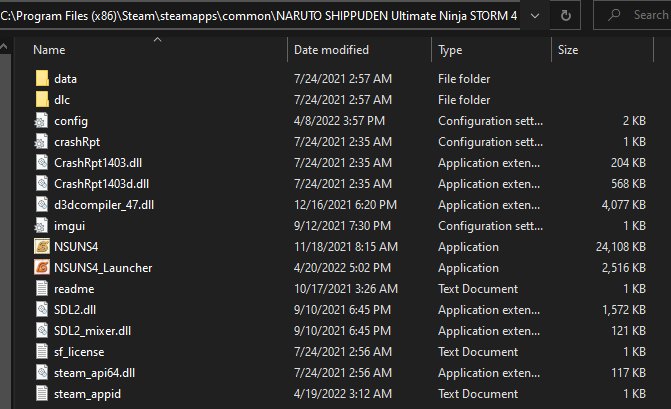
Storm 4 mods are not installed by a manager. They are loose files dropped into the game directory, and the folder that matters is called data_win32. Evolution expects a clean one.
Why it breaks
The launcher loads its own file set from the same place an older mod put its files. Two mods writing to the same paths produces a game that will not start through the launcher — or worse, one that starts and then behaves strangely, with mixed models, missing voices or stages that load halfway.
The mod's own install guide puts this first, before anything about downloads.
What to do
- Close Steam and the launcher.
- Open your game directory:
C:\Program Files (x86)\Steam\steamapps\common\NARUTO SHIPPUDEN Ultimate Ninja STORM 4
- Find the
data_win32folder. - Cut it to your desktop or a backup directory. Do not delete it if you might go back.
- Start the install from the top.
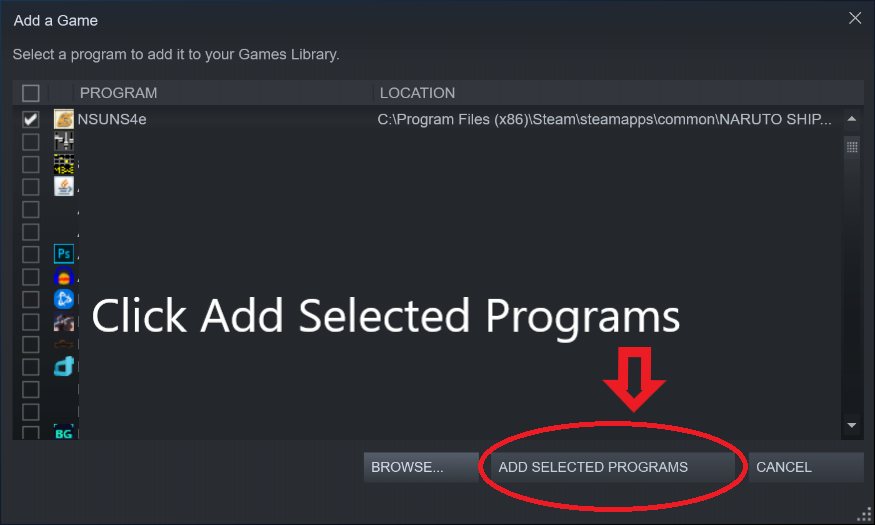
Keeping old content instead of losing it
Long-time modders run several mod sets side by side by giving each its own folder and swapping them in. The Evolution launcher itself documents a variant of this: separate folders such as data_evo for the release build and data_evo_test for the old test build, so that switching between them is a rename rather than a re-download.
After a Steam update
If a Steam update patches STORM 4, do not assume your mod files survived cleanly. Run Steam's file verification and then press Validate in the launcher so the mod re-checks every file it owns. The verify game files page walks through that.
Still not starting
If the folder is clean and the launcher still refuses, go to launcher problems — the next two suspects are the Steam copy itself and a broken base install.