Uninstalling Evolution
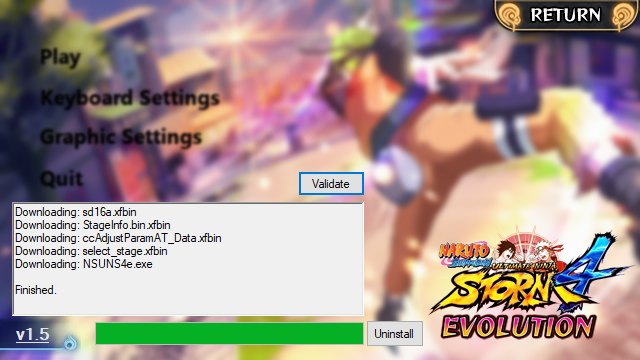
Uninstalling is done from the same window that installed it. There is no separate uninstaller and nothing is written to the registry.
The normal path
- Open the Evolution launcher.
- Press Uninstall.
- Let it remove the mod's files from the game directory.
- Close the launcher. STORM 4 is now the base game again and can be started from Steam as usual.
Your saves
Evolution keeps its progress in its own save file, STORM4E.S. The base game's save is untouched, which is why players report that story and adventure progress survives installing the mod. If you remove the mod, the base save is what the game loads; nothing has to be converted back.
One caveat worth knowing: if the Evo save ever fails to load, the mod falls back to the base game's save and converts it forward. That is deliberate behaviour from the 1.11 notes, not a bug.
Keeping the files
If you are only stepping away — waiting for a new build, or troubleshooting a machine — you do not have to let go of the download. Copy the data_win32 folder out of the game directory to a backup location and uninstall, then paste it back later. The old mods page covers that folder.
Reinstalling later
The launcher is a small file. Keep a copy of it with your backup: paste it back into the game folder, run it, press UPDATER, then Validate, and the current build is back. Any new characters, stages and costumes come down with the update.
A truly clean slate
If you want the machine back to a stock game with nothing of the mod anywhere:
- Uninstall through the launcher.
- Open Steam, right-click STORM 4, Properties → Installed Files → Verify integrity of game files (see verify game files).
- Look for a leftover launcher exe or shortcut and remove it.
That sequence leaves the base game, its saves and its DLC exactly as Steam shipped them.