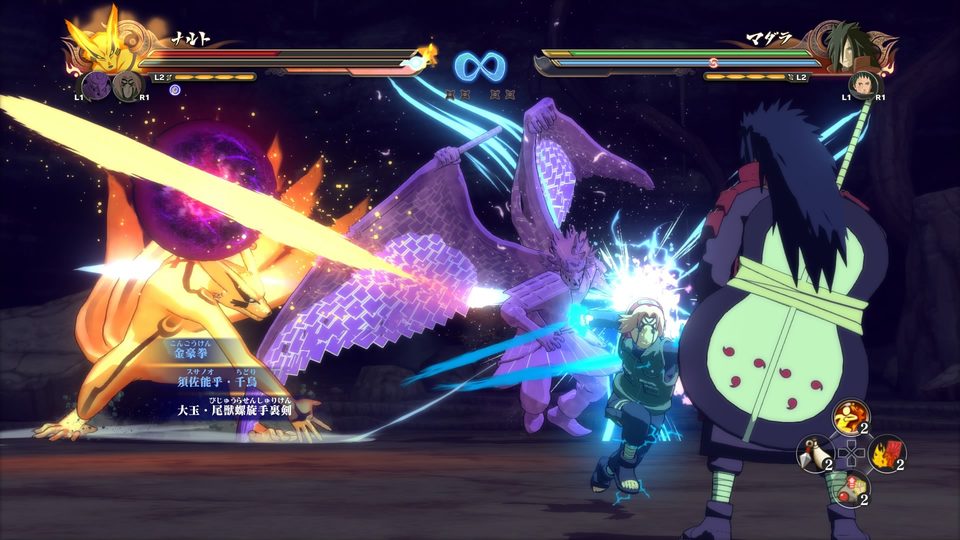
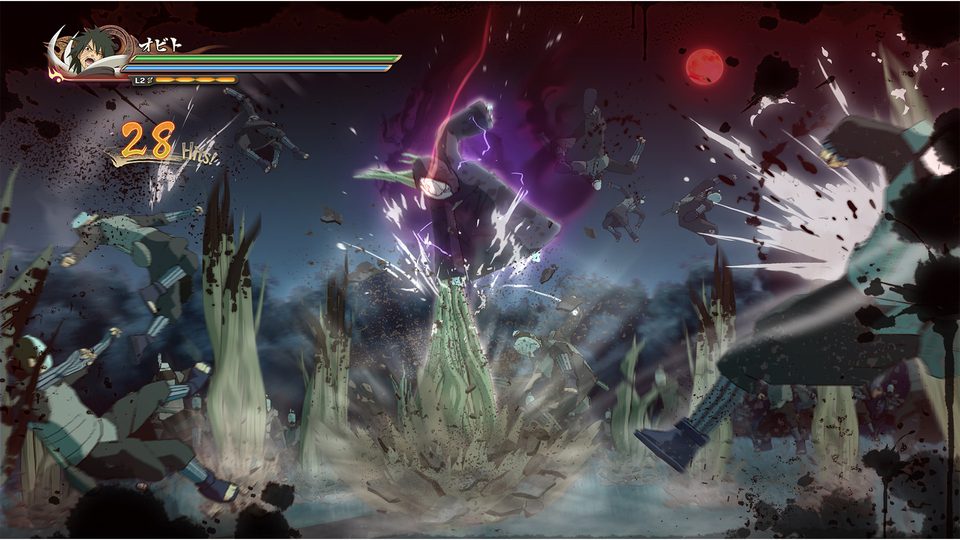
60 FPS and performance
Set the game to 60 FPS and use the dedicated GPU if you are on a laptop, by pointing Radeon Software or NVIDIA Control Panel at NSUNS4e.exe. If a combo or an ultimate stops connecting after you switch to 60 FPS, it is a known frame-rate sensitivity the mod addresses in its own 60 FPS fix list.
Storm 4 was built around 30 FPS, and a lot of its timing was tuned there. Evolution carries explicit 60 FPS work, which tells you the mode is supported rather than tolerated — but also that it is worth setting up properly.
The 60 FPS fixes in the mod
Recent builds ship a dedicated list of 60 FPS corrections, including:
- Pain's air combo not connecting properly at 60 FPS.
- Momoshiki anime-version combos failing to confirm.
- Ohnoki's ultimate animation behaving differently from the 30 FPS build.
- Sasuke (Storm 3 EMS) up-combo confirmation.
- Guy (Eight Gates) ultimate alignment.
- Kirin ultimate and Sasuke (Supporting Kage) effect fixes.
- Circular movement improvement and intro timer correction.
If you switch to 60 FPS and one specific character misbehaves, check the changelog for your build before assuming a broken install.
Borderless fullscreen
1.11 added borderless fullscreen windowed support. Use it if you stream, alt-tab constantly, or run two monitors — it removes the resolution-switch flicker that fullscreen exclusive causes without costing you the window frame.
The laptop GPU setting
This is the single highest-impact change for laptop players, and the mod's install guide calls it out separately:
- Open AMD Radeon Software or NVIDIA Control Panel.
- Find the per-application graphics setting.
- Add
NSUNS4e.exefrom your STORM 4 game folder. - Force it to use the high-performance / dedicated GPU.
Left alone, the mod tends to run on integrated graphics and the result is low frame rates with high input lag — the kind of thing that gets blamed on the mod rather than the setting.
What to change when it is still slow
Order of operations, cheapest first:
- Resolution. Dropping from 1440p to 1080p does more than any in-game toggle.
- Shadows and effects, which is where the extra stages and effect work cost the most.
- Close background overlays. Discord, GeForce Experience and browser hardware acceleration all compete for the same GPU.
- Make sure the launcher's own settings are applied. The launcher exposes a large part of the game's configuration; changing something there and never applying it is a common self-inflicted wound.
Timing differences you should expect
Some mechanics were tuned for one frame rate. If a technique that always worked on the old build now drops, the honest first guess is a frame-rate interaction, not corruption. Try the same sequence and note the character and the move; the version pages on this site record which timing issues each build addressed.